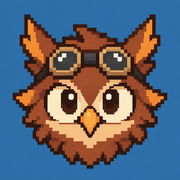
Owlboy Wallpaper Guide: Find the Best Art for Every Screen
Find the best Owlboy wallpaper for desktop, mobile, ultrawide, and dual-monitor displays, with tips for sizing and image quality.
An Owlboy wallpaper can turn an ordinary screen into a window overlooking floating islands, ancient ruins, and luminous pixel-art skies. Choosing the right Owlboy wallpaper matters because even beautiful artwork can look blurry, awkwardly cropped, or cluttered when it does not match your display. This guide explains where to look, which dimensions to choose, and how to preserve the game’s carefully crafted visual style across desktops, laptops, phones, and multi-monitor setups.
Why Owlboy Artwork Works So Well as Wallpaper
Owlboy is especially suited to wallpaper because its environments were designed with strong silhouettes, layered scenery, and expressive color palettes. Clouds, distant islands, mechanical structures, and open skies create natural negative space where desktop icons can remain visible.
The game’s pixel art also gives fans several visual directions to explore. A quiet landscape can make a restrained work background, while a character-focused scene featuring Otus and his companions creates a more energetic gaming setup.
According to community reports, fan collections may contain hundreds of images related to the game. One Pinterest board identified during research displayed more than 260 pins involving Owlboy, game art, and adjacent indie-game imagery. That volume demonstrates the game’s visual appeal, but it does not mean every image is an official wallpaper or licensed for redistribution.
| Wallpaper Style | Visual Character | Best Use | Potential Drawback |
|---|---|---|---|
| Scenic landscape | Atmospheric and spacious | Work desktops and laptops | Important details may be cropped |
| Character portrait | Expressive and recognizable | Phones and lock screens | Icons can cover faces |
| Gameplay screenshot | Authentic in-game appearance | Personal gaming setups | HUD elements may remain visible |
| Minimal composition | Clean and distraction-free | Productivity-focused screens | Fewer game details |
| Fan illustration | Varied and imaginative | Personal collections | Usage rights may be unclear |
| Animated background | Motion and ambience | Gaming PCs or display setups | Higher battery and GPU use |
For a reliable overview of the game and its original visual identity, visit the official Owlboy website. Official promotional art is also useful as a reference when determining whether an image has been heavily edited, incorrectly recolored, or stretched beyond its intended dimensions.
Choose the Right Owlboy Wallpaper Resolution
Resolution is the first specification to check before downloading an image. Ideally, a wallpaper should equal or exceed the native resolution of your display. A smaller file must be enlarged, which can introduce softness, uneven pixel edges, and compression artifacts.
Pixel art deserves extra care. Standard photographs often tolerate mild scaling, but individual pixels and hard-edged details make poor resizing more obvious. Integer scaling—enlarging an image by whole-number multiples such as 2× or 3×—usually retains the cleanest appearance.
| Device or Display | Common Resolution | Aspect Ratio | Recommended Image Size |
|---|---|---|---|
| HD laptop | 1366 × 768 | About 16:9 | 1366 × 768 or larger |
| Full HD monitor | 1920 × 1080 | 16:9 | At least 1920 × 1080 |
| QHD monitor | 2560 × 1440 | 16:9 | At least 2560 × 1440 |
| 4K monitor | 3840 × 2160 | 16:9 | At least 3840 × 2160 |
| Ultrawide monitor | 3440 × 1440 | 21:9 | 3440 × 1440 or wider |
| Dual 1080p monitors | 3840 × 1080 combined | 32:9 | At least 3840 × 1080 |
| Modern phone | Varies by model | Usually 19.5:9–20:9 | Match the phone’s native resolution |
A 1920 × 1080 image contains approximately 2.1 million pixels. A 3840 × 2160 version contains about 8.3 million—four times as many. Consequently, a wallpaper that looks sharp on a Full HD monitor may appear noticeably soft on a 4K screen.
Match the Aspect Ratio Before Cropping
Resolution describes the number of pixels, while aspect ratio describes the canvas’s shape. If the image and screen have different aspect ratios, your operating system must crop, stretch, or letterbox the artwork.
Use these practical rules:
- Choose 16:9 artwork for most televisions and standard monitors.
- Look for 16:10 versions for productivity laptops with taller displays.
- Select purpose-made 21:9 images for ultrawide screens.
- Use vertical compositions for phone home screens and lock screens.
- Avoid stretching an image to fill the display.
- Keep important characters away from the edges if your device applies automatic cropping.
A centered composition is usually the safest choice when you use the same Owlboy wallpaper across several devices. If you prefer landscapes, select an image with extra sky on the top and sides so it can survive different crops.
Where to Find High-Quality Owlboy Wallpaper
Start with official sources, storefront media, and artwork shared by its original creator or publisher. These sources are more likely to provide accurate colors and clean files without unrelated watermarks.
Community-curated galleries can help with discovery. However, boards and image-search results often mix official illustrations, fan art, screenshots, memes, and reposted files. A large collection is not automatically a high-quality collection.
| Source Type | Main Advantage | What to Check | Best Practice |
|---|---|---|---|
| Official game website | Authentic art and branding | Available download resolution | Use for personal display unless terms say otherwise |
| Official social accounts | Promotional images and event art | Platform compression | Find the earliest original upload |
| Digital storefront | Clean screenshots and key art | Fixed image dimensions | Download the largest available version |
| Artist portfolio | High-quality original work | Artist’s usage statement | Credit the artist when requested |
| Community board | Broad variety and inspiration | Original source and ownership | Trace each image back to its creator |
| Wallpaper aggregator | Convenient resolution filters | Upscaling, watermarks, and licensing | Inspect files before downloading |
When evaluating a candidate, open the full image rather than saving its preview thumbnail. Check the displayed pixel dimensions and zoom to 100%. Look closely at character outlines, clouds, text, and color gradients. Blocky discoloration around fine details often signals JPEG compression, while fuzzy pixels may indicate low-quality enlargement.
Before using community artwork, ask four questions:
- Who created the image?
- Is the page showing the original upload?
- Does the artist permit personal wallpaper use?
- Has the image been altered or stripped of attribution?
Personal use is different from commercial use. Setting an illustration as your desktop background generally does not grant permission to sell prints, distribute wallpaper packs, place the art on merchandise, or upload it as your own work. When no usage guidance is available, keep the file private and preserve any credit attached to it.
How to Prepare Wallpaper Without Ruining the Pixel Art
You do not need advanced editing skills to make an image fit your screen. A basic crop-and-resize workflow can produce a cleaner result than allowing the operating system to stretch the file automatically.
| Step | Action | Why It Helps |
|---|---|---|
| 1 | Record your screen’s native resolution | Establishes the exact target dimensions |
| 2 | Download the largest legitimate source image | Leaves enough detail for cropping |
| 3 | Duplicate the original file | Preserves a clean backup |
| 4 | Crop to the display’s aspect ratio | Prevents distortion |
| 5 | Resize with nearest-neighbor when appropriate | Maintains hard pixel edges |
| 6 | Export as PNG or high-quality JPEG | Balances sharpness and file size |
| 7 | Preview with icons and taskbar visible | Reveals readability problems |
Nearest-neighbor interpolation is often the best resizing method for true pixel art because it does not invent blended colors between pixels. For painted promotional illustrations or artwork containing gradients, a high-quality bicubic or Lanczos method may look smoother.
PNG preserves sharp edges and does not introduce lossy compression, making it a strong choice for pixel-heavy artwork. JPEG can create smaller files and may work well for complex illustrations, but aggressive compression can produce halos and color noise.
Improve Icon and Text Visibility
A visually impressive background is not always a practical desktop. Bright clouds behind white icon labels can reduce readability, while highly detailed scenery can make files difficult to locate.
Try these adjustments:
- Place characters on the side opposite your main icon column.
- Darken the image by 10% to 20% for a calmer work desktop.
- Add a subtle gradient behind icons instead of blurring the entire image.
- Keep faces clear of clocks, widgets, and phone camera cutouts.
- Create separate home-screen and lock-screen crops for mobile devices.
- Test both light and dark interface modes.
For OLED phones, darker scenes may also reduce power use because black pixels can switch off individually. The real benefit varies according to screen technology, brightness, and how long the wallpaper remains visible.
Best Owlboy Wallpaper Styles for Different Setups
The ideal design depends on how you use your device. A dramatic scene may look excellent on a dedicated gaming display but feel distracting behind spreadsheets or writing software.
| Setup | Recommended Style | Composition Tip | Suggested Format |
|---|---|---|---|
| Work computer | Dark scenic landscape | Leave negative space for icons | PNG or high-quality JPEG |
| Gaming PC | Character ensemble or action scene | Center the main subject | PNG |
| Phone lock screen | Vertical portrait or tall environment | Keep the upper third uncluttered | PNG or JPEG |
| Phone home screen | Minimal sky or distant landscape | Avoid detail behind app labels | JPEG |
| Ultrawide display | Panoramic floating-island scene | Protect details near the far edges | Large PNG or JPEG |
| Dual monitors | Wide environment with offset subjects | Keep the bezel away from faces | Combined-width image |
| Streaming backdrop | Recognizable but restrained artwork | Reduce visual clutter near overlays | High-resolution PNG |
For a dual-monitor setup, combine the widths of both screens while retaining their shared height. Two 1920 × 1080 monitors require a 3840 × 1080 canvas. Preview where the physical bezel falls; otherwise, Otus or another focal subject could be split between displays.
Ultrawide owners should avoid merely stretching standard 16:9 artwork. A better option is to crop a larger environmental scene or extend its outer edges using colors already present in the sky. Mirroring the edges can work for abstract clouds, but it becomes obvious when islands or buildings repeat.
You can also build a coordinated set rather than using one file everywhere:
- A wide Owlboy wallpaper for the desktop
- A darker crop for the laptop
- A vertical character image for the phone lock screen
- A minimal environment for the phone home screen
- A matching color sampled from the artwork for interface accents
This approach makes the setup feel consistent without forcing one composition into incompatible screen shapes.
Frequently Asked Questions
What is the best resolution for an Owlboy wallpaper?
The best resolution is your display’s native resolution or higher. Use 1920 × 1080 for Full HD, 2560 × 1440 for QHD, and 3840 × 2160 for 4K. Matching the aspect ratio is just as important because it prevents stretching and excessive cropping.
Can I use fan-made Owlboy artwork as wallpaper?
You can often use fan art privately if the creator allows personal use, but you should confirm the artist’s stated terms. Do not assume that an image found on a community board is free to redistribute, edit, sell, or include in a public wallpaper pack.
Why does my Owlboy wallpaper look blurry?
The source file may be smaller than your screen, heavily compressed, or displayed with the wrong scaling method. Download a higher-resolution original, crop it to the correct aspect ratio, and use nearest-neighbor resizing for authentic pixel art when appropriate.
Should I choose PNG or JPEG?
Choose PNG for crisp pixel art, transparent elements, or images with sharp edges. Choose a high-quality JPEG for detailed promotional illustrations when reducing file size matters. Avoid repeatedly saving a JPEG, because each lossy export can further degrade the image.
Related Guides
Owlboy Art Book Guide: What Fans Should Know Before Buying
Explore Owlboy art book options, official sources, collector checks, and ways to enjoy the game's detailed pixel art.
Owlboy Pixel Art: How Its Color, Animation, and Detail Create a Living World
Explore how Owlboy pixel art uses color, animation, silhouettes, and layered environments—and learn techniques for your own pixel scenes.
Owlboy Soundtrack Guide: Why Jonathan Geer’s Soaring Score Still Resonates
Explore the Owlboy soundtrack, its orchestral style, standout themes, musicians, formats, and lasting appeal among players.
Owlboy Sprites: A Practical Guide to Pixel Art, Animation, and Asset Study
Explore Owlboy sprites, animation techniques, sprite resources, and practical ways to study the game's detailed pixel art.